


Screen Time, Parental Control and Game Safety
Managing screen time for children becomes easier with clear time limits, age-appropriate game selection, and parental control settings.


There is a quiet race inside the gaming world. On one side, the industry's giant brands PlayStation, Xbox, Apple, Google add something new with every update: night time lock, spending approval, age filter.
On the other side are millions of parents unaware of these features. Most families discover these features only when a problem arises, like a child still gaming at 2:00 AM, or a bill showing 400 TL of in-game spending. Yet, most settings take no more than ten minutes to configure.
Section 1: Settings in Every Corner of the Home
Let's start with the phone in your pocket
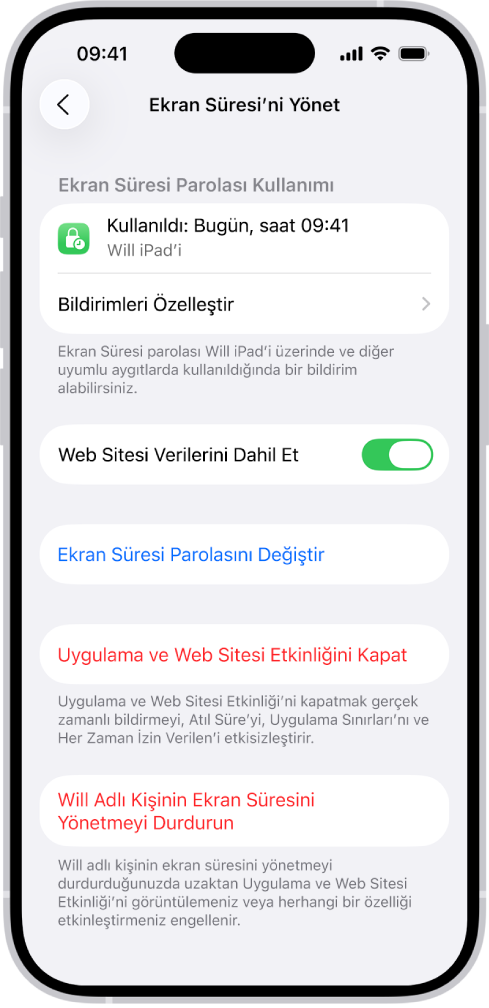
If your child uses an iPhone, Apple's Screen Time feature is surprisingly detailed. Settings > Screen Time > starts the setup through This is My Child's iPhone; you can set bedtime, app limits, and App Store approvals all in one place. A warning: make the Screen Time passcode something your child cannot guess, or one morning you might find your limits ignored.
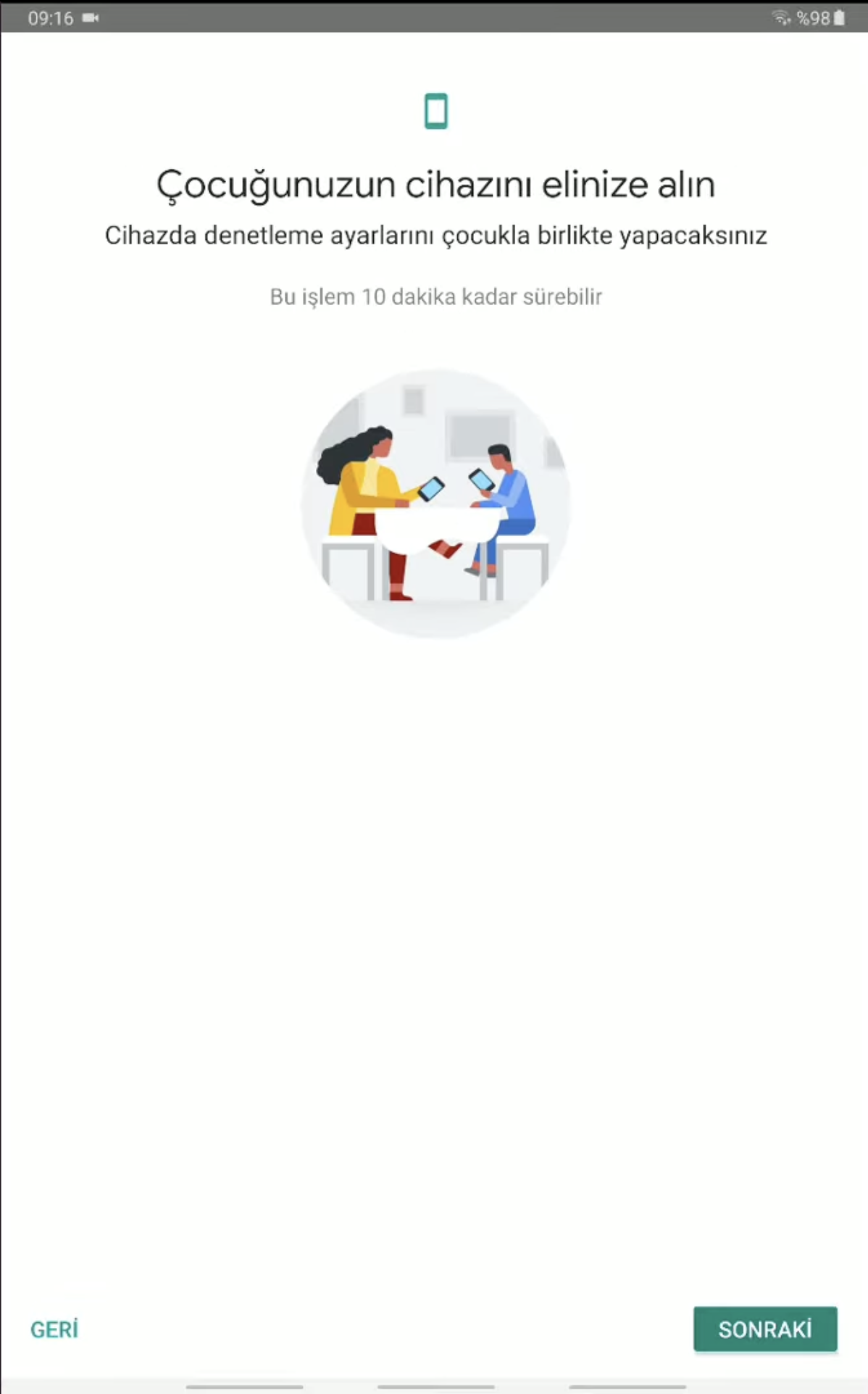
On Android, Google's solution is the separate Family Link app. Installed on both your and your child's phone and paired through a Child Account, it manages daily screen time, app limits, bedtime, location tracking, and Play Store purchase approvals all from a single app.
Computers work the same way
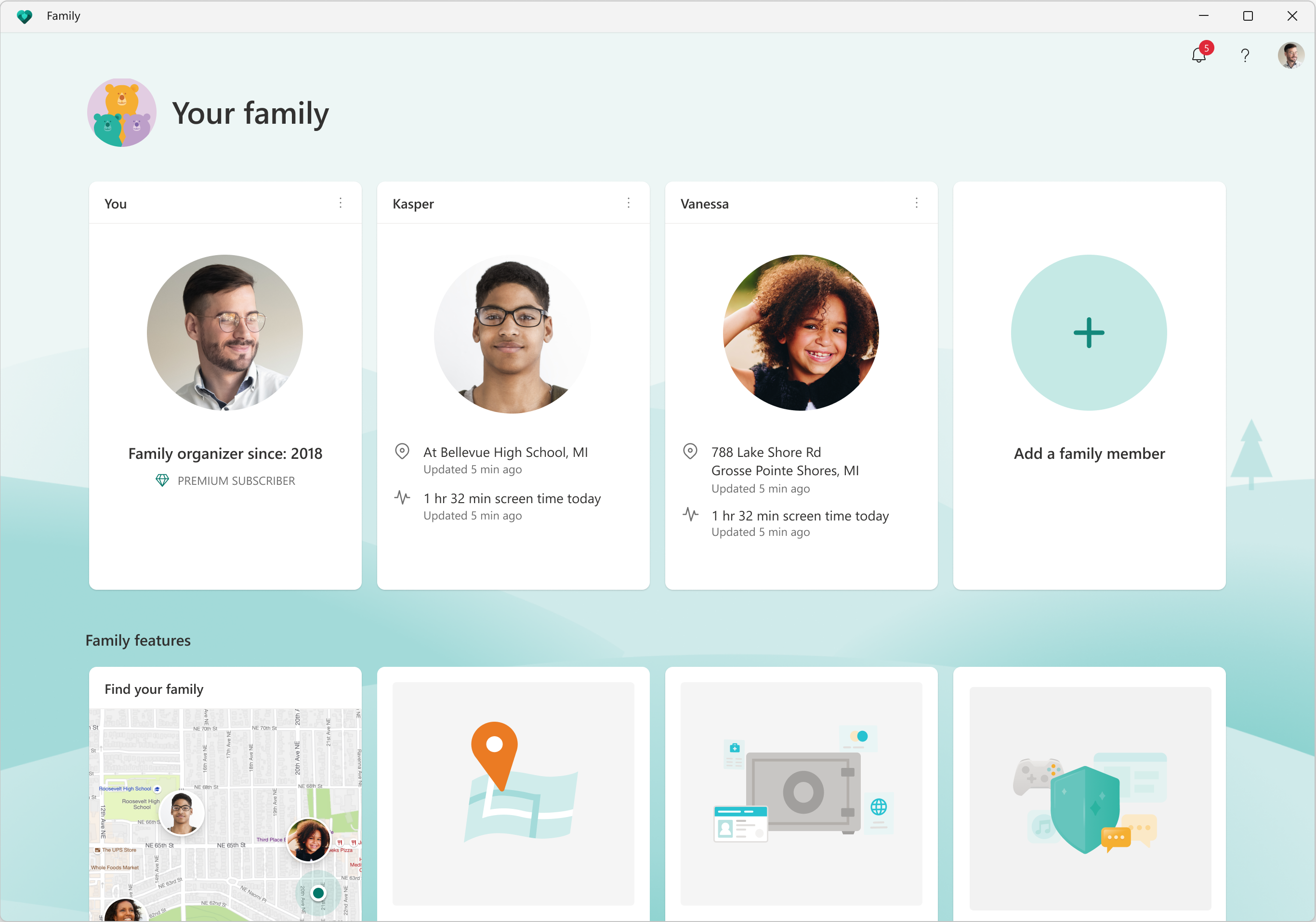
Windows has a ready panel: Microsoft Family Safety. Settings > Accounts > Family, you create a child account and manage it via family.microsoft.com; screen time, app limits, content filters, and spending approvals are all on one page.
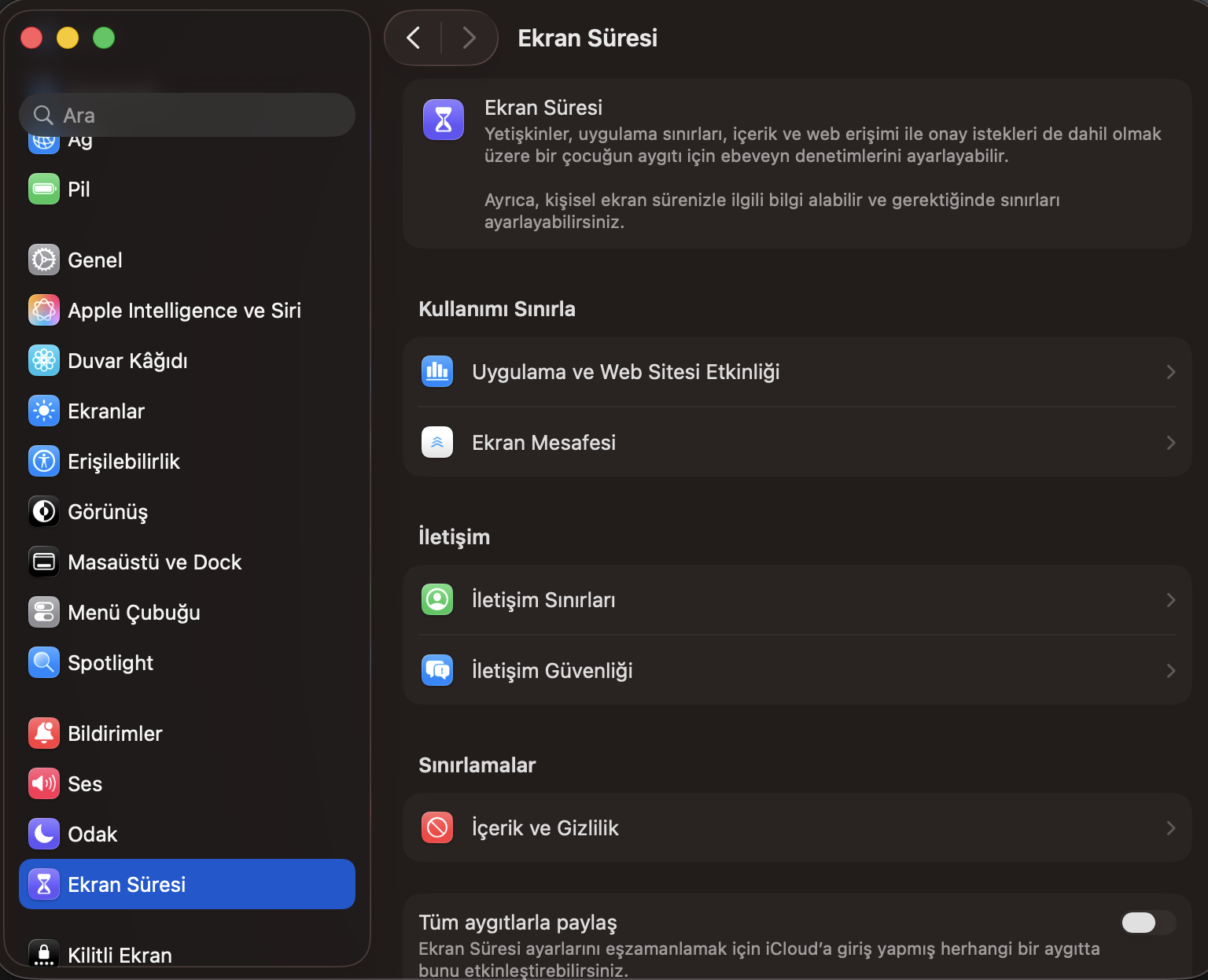
On Mac, Apple has the same Screen Time feature. System Preferences > Screen Time lets you set device lock and app limits at night, similar to the iPhone.
Special note for PC gamer children: Steam
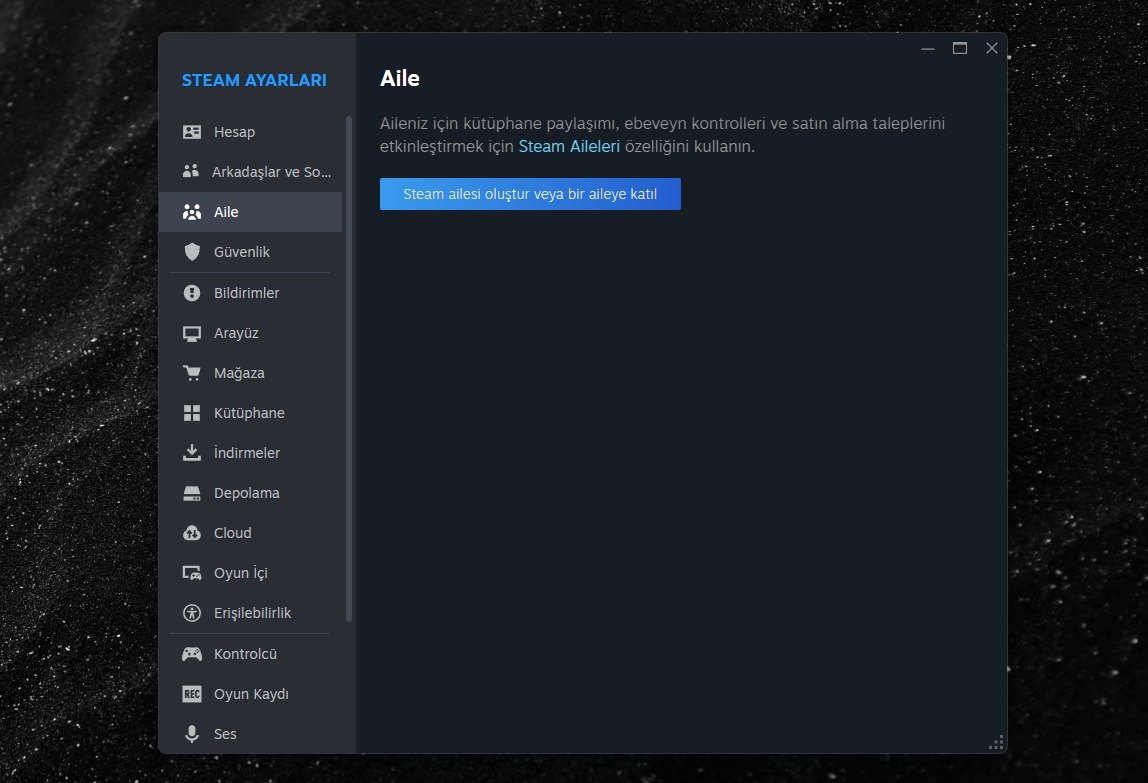
Steam's Family View mode opens at Settings > Family > Manage Family View. You set a 4-digit PIN; without it, your child cannot access the store, make purchases, or access chat. Plus, only games you approve will appear in the library.
The last stop: Console
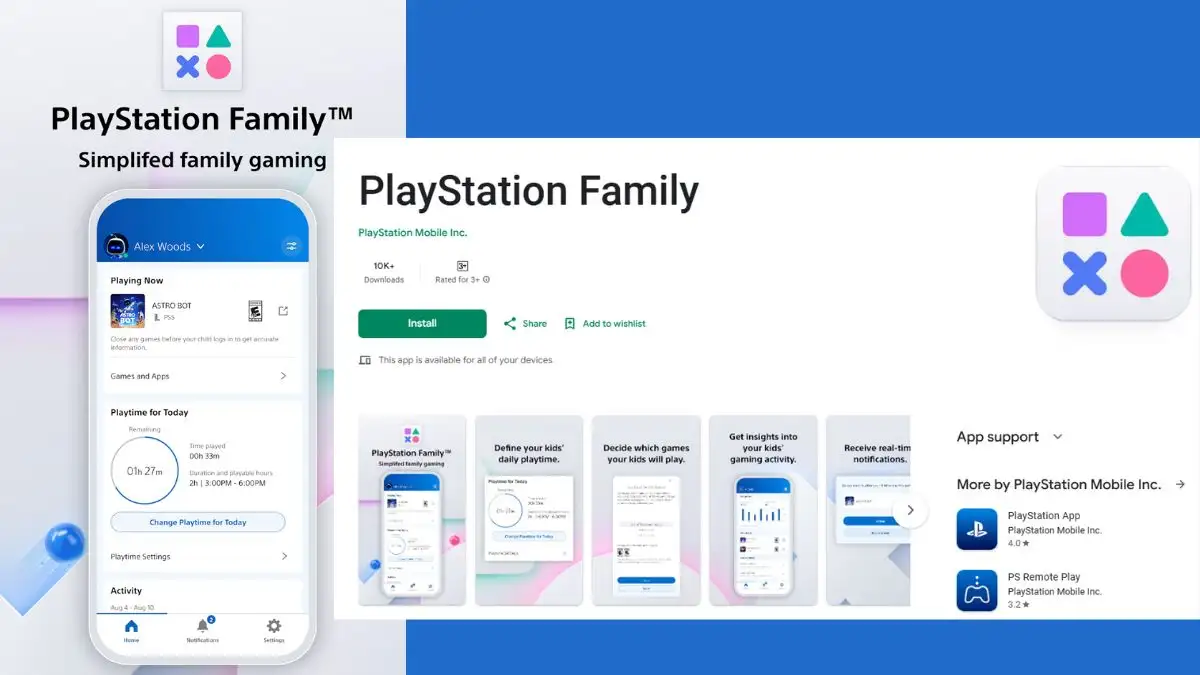
On PlayStation, go to Settings > Family and Parental Controls > Family Management to create a "family" and add your child. From then on, daily game time, age-based access, PSN communication settings, and monthly spending limits require your approval.
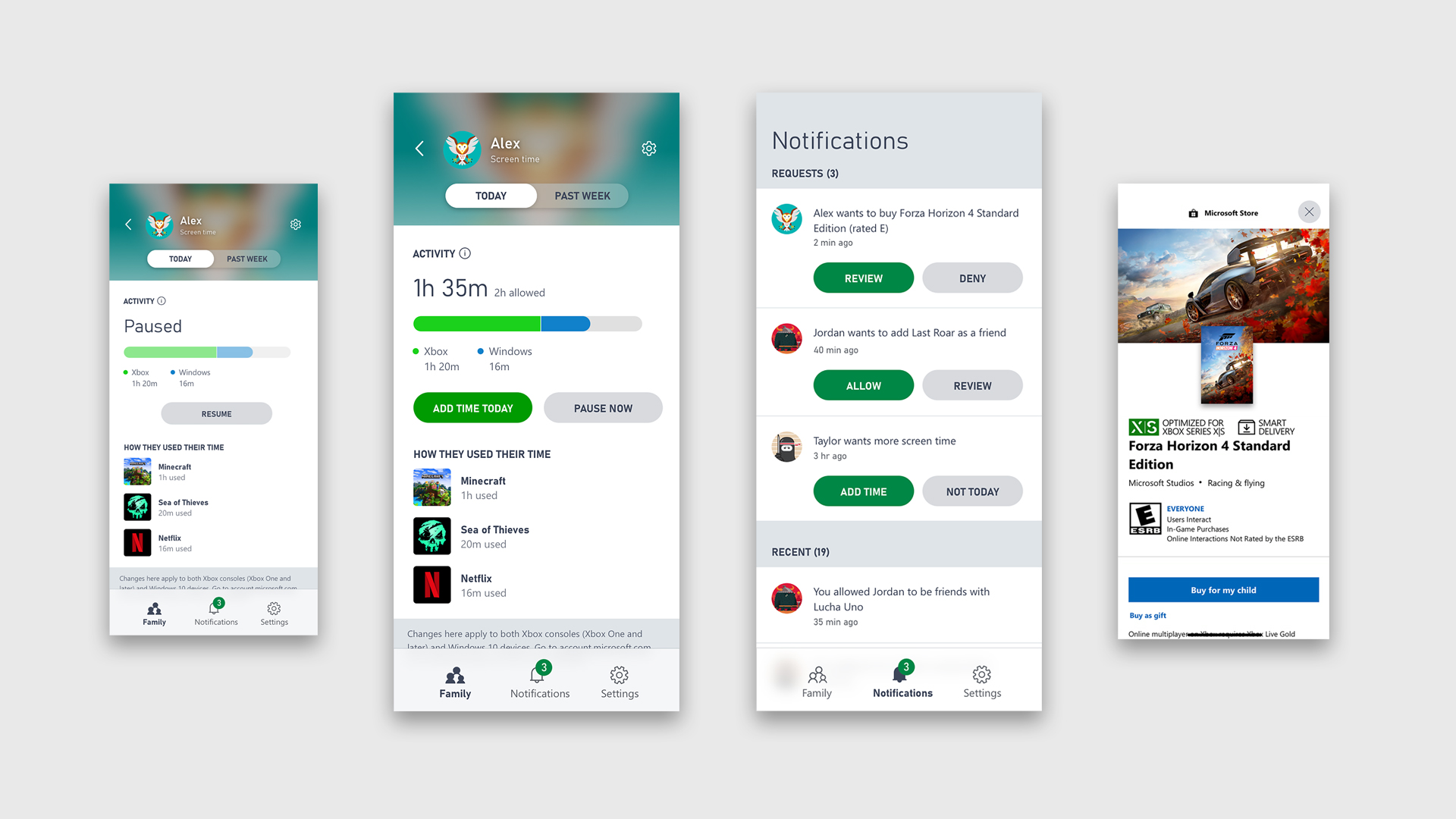
Microsoft has streamlined the Xbox path: instead of dealing with console menus, download the Xbox Family Settings app on your phone. Game time, age filters, purchase approval, and friend requests are all at your fingertips.
When the Platform's Own Tool Isn't Enough: Third-Party Solutions
Built-in tools work for most families, but if you want to manage multiple devices from a single panel, alternatives exist: Qustodio is powerful for multi-device and social media monitoring; Kaspersky Safe Kids offers location and app control; Bark uses AI for message analysis (more effective in English); Norton Family focuses on web filtering; Aura combines digital security, identity protection, and parental controls in one platform. Most have free trial periods.
Section 2: Settings Hidden Within the Game Itself
Let's say you've set up the devices; opening the game isn't the end. Many popular games have a hidden "parental mode"; you just need to know where to look.
In most popular games, these settings are found in three menus: Settings > Gameplay / Graphics (blood effects, violence level), Settings > Privacy and Security (voice chat, messaging, friend requests from strangers), and in some games a separate Parental Control menu (usually in major titles like CoD or Fortnite). The most frequently disabled options are blood effects, voice chat, and swear filters.
Spending is a separate headache. A child playing Fortnite or Roblox can accumulate serious amounts by clicking repeatedly. The best third-party solution is to remove the payment method from the account and use a prepaid card; alternatively, require fingerprint or facial recognition for each purchase.
Conclusion
When designed correctly, gaming is a tool that adds color to your child's life. Parental control does not exist to scare this experience, but to keep it safe and balanced, and most settings are already built into devices, just waiting for an evening setup session.
At ByNoGame, to make our part easier, we add PEGI and ESRB info to each game's detail page; so before purchasing, you can see at a glance if the game is age-appropriate for your child. But the goal is not to turn off the screen, but to make the time spent in front of it more meaningful.